Multiple tenants
StoryVault supports a single user being a member of multiple tenants (e.g. companies, departments, customers) with different roles and capabilities per tenant. One email, one password, as many memberships as needed.
For users: switching tenants
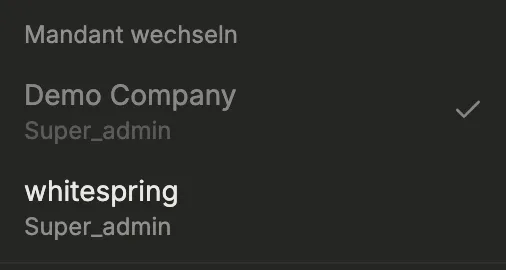
Section titled “For users: switching tenants”If you are a member of more than one tenant, a “Switch tenant” section automatically appears in the user menu in the top right.
-
Click your avatar in the top right
The dropdown shows your tenants when there’s more than one. The active tenant is marked with a checkmark.
-
Pick another tenant
The page reloads and you land on the new tenant’s dashboard. Your role, projects, sessions, favorites and dashboard widgets all switch accordingly.
-
Any open tabs follow along
Other StoryVault tabs you have open are automatically refreshed, so no stale data from the previous tenant leaks into the new context.
What differs per tenant
Section titled “What differs per tenant”| Preference | Per tenant | Global (personal) |
|---|---|---|
| Role (Admin, User, …) | ✓ | – |
| LMS roles (Trainer/Learner) | ✓ | – |
| Sidebar favorites | ✓ | – |
| Dashboard widgets | ✓ | – |
| Pinned sessions/projects | ✓ | – |
| Email + password | – | ✓ |
| Language, timezone | – | ✓ |
Set your default tenant
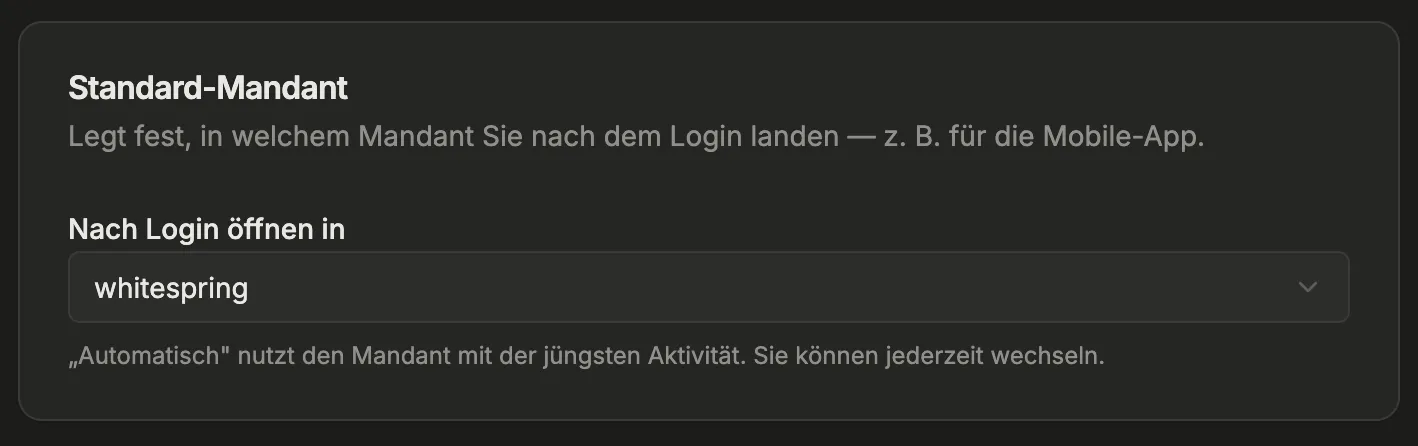
Section titled “Set your default tenant”If you are a member of more than one tenant, you can pick in your profile which tenant you land in automatically after sign-in — useful for the mobile app or when you sign in after a longer absence.
-
Open settings
Top-right avatar → Profile (below the tenants list).
-
“Default tenant” card
The card appears automatically when you belong to more than one tenant.
-
Pick a tenant or “Automatic”
- Automatic (most recent): you land in the tenant you were last active in.
- Specific tenant: you always land there — regardless of last activity.
The change is saved instantly. The next sign-in (web or mobile app) uses the new setting.
Leave a tenant (self-service)
Section titled “Leave a tenant (self-service)”If you no longer need a tenant, you can leave it yourself — without admin help.
-
Open profile
Avatar top right → Profile → “Tenant Memberships” section.
-
Click “Leave” on the tenant
You see all tenants you are active in. The button is disabled for your default tenant — set a different default first.
-
Confirm
The membership ends immediately. If you leave the currently active tenant, you are switched to your default tenant automatically.
Invitation to another tenant
Section titled “Invitation to another tenant”When an admin of another tenant invites you:
- You are already signed in → next time you open StoryVault a dialog shows the pending invitation. You can accept or decline.
- The email link still works: it leads to a confirmation page showing the tenant name, offered role and your signed-in account — Accept adds you and switches you into the new tenant right away.
- Signed in with the wrong email: the page detects it and offers a “Sign out and sign in” button so you can use the invited account instead.
For admins: managing users
Section titled “For admins: managing users”Add an existing user to your tenant
Section titled “Add an existing user to your tenant”In the user edit dialog (Admin → Users → ✏️) there is a “Tenant Memberships” section.
-
Edit the user
Click the pencil icon next to a user.
-
Open the “Tenant Memberships” section
You see all tenants the user is a member of — but only those where you are admin.
-
Click “Add”
Pick a tenant from the dropdown, choose a role (at most your own), confirm. The user receives no email and becomes a member immediately — use this path only if you’re sure they’ll agree.
-
Remove a membership
The X icon removes the membership. The user loses access instantly, but the membership can be restored within 30 days (trash).
Invitations vs. direct add
Section titled “Invitations vs. direct add”If you’re not sure the user wants to join: use the regular invitation flow (Admin → Invitations → New invitation). Then the user decides whether to join.
The invitation status is shown in the list:
- Pending — link has not been used yet
- Accepted — user has agreed
- Declined — user has declined (with timestamp)
- Expired — 7 days exceeded without use
Lock-out protection
Section titled “Lock-out protection”StoryVault prevents critical misconfigurations automatically:
- The last admin of a tenant cannot be removed or demoted
- The last administrator of the system is likewise protected
- Your own role cannot be changed — another admin must do it
- API keys are automatically invalidated when the user is removed from the tenant
For administrators
Section titled “For administrators”Administrators can additionally:
- See membership badges for the tenants a user belongs to in the user list
- Pick the target tenant explicitly when creating an invitation
- Add users directly to any tenant
- Additionally use impersonation to step into a tenant without formally being a member (for customer support) — marked with an “(Impersonation)” label