Bot via Email
Your personal bot email address lets you schedule recordings directly from your calendar. Invite the address to a supported online meeting; StoryVault uses the appointment, meeting link, and your saved defaults.
One-time setup
Section titled “One-time setup”-
Open settings
Open your user menu and go to Settings → Meeting Bot Email.
-
Generate your personal address
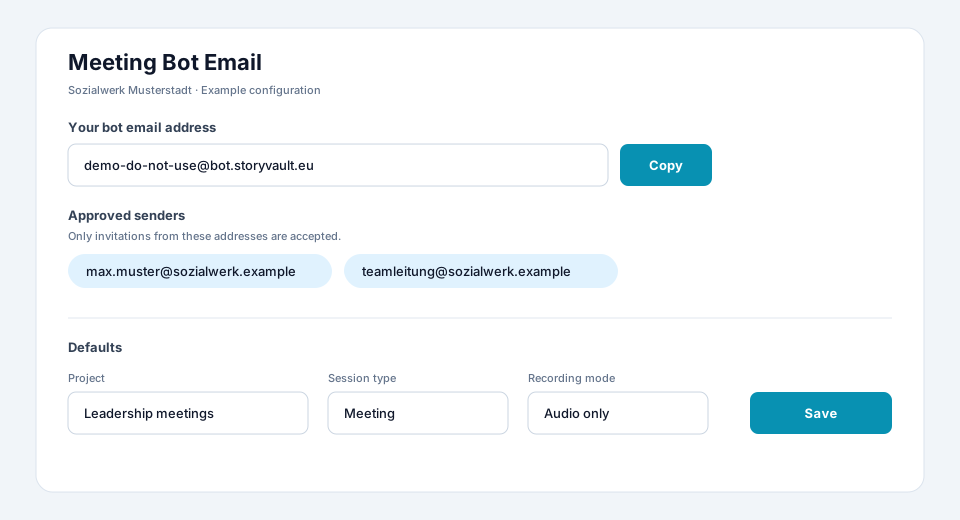
Select Generate email address and save the displayed address in your contacts. The illustration below contains example data only.
-
Add approved senders
Add every business email address from which calendar invitations may be accepted. Invitations from other senders are not processed. Use the exact address that your calendar sends as the organiser or sender.
-
Set defaults
Choose the destination project, session type, recording mode, and the name shown for the bot in the meeting. If you belong to more than one organisation, select the correct organisation as well.
-
Save and test
Save the settings and send a test invitation for a short meeting. Then confirm in the StoryVault calendar that the appointment was created.
Schedule a meeting
Section titled “Schedule a meeting”- Create an appointment with a date and time in Outlook, Google Calendar, or your calendar application.
- Add a supported Teams, Riverside, or Google Meet link to the appointment.
- Invite your personal bot email address as an attendee.
- Send the invitation from an approved sender address.
- Open the Calendar in StoryVault and confirm the project, time, and status of the planned recording.
For recurring meetings, keep the bot as an attendee of the series. Calendar changes and cancellations are applied to the planned recording. After major changes, briefly check the StoryVault calendar.
Regenerate the address
Section titled “Regenerate the address”Use Regenerate email address if the address was shared accidentally or should no longer be used. Update every future calendar invitation afterwards: the previous address no longer accepts new invitations.
Troubleshooting
Section titled “Troubleshooting”| Problem | Check |
|---|---|
| Appointment does not appear | Was the invitation sent, does it contain a supported meeting link, and was it sent by an approved sender? |
| Wrong project or session type | Correct the defaults under Meeting Bot Email and check the planned recording in the calendar. |
| Bot does not join | Check the time, time zone, meeting link, and status in the StoryVault calendar. Make sure the bot is admitted to the meeting. |
| A change was not applied | Send the updated invitation again and then verify the appointment in StoryVault. |
| A recurring appointment is missing | Check whether the bot address is an attendee of the entire series or only one occurrence. |