Trash
Deleted sessions, projects, and courses are not immediately removed permanently. They go into the trash — your safety net against accidental deletion.
How It Works
Section titled “How It Works”-
Open the trash
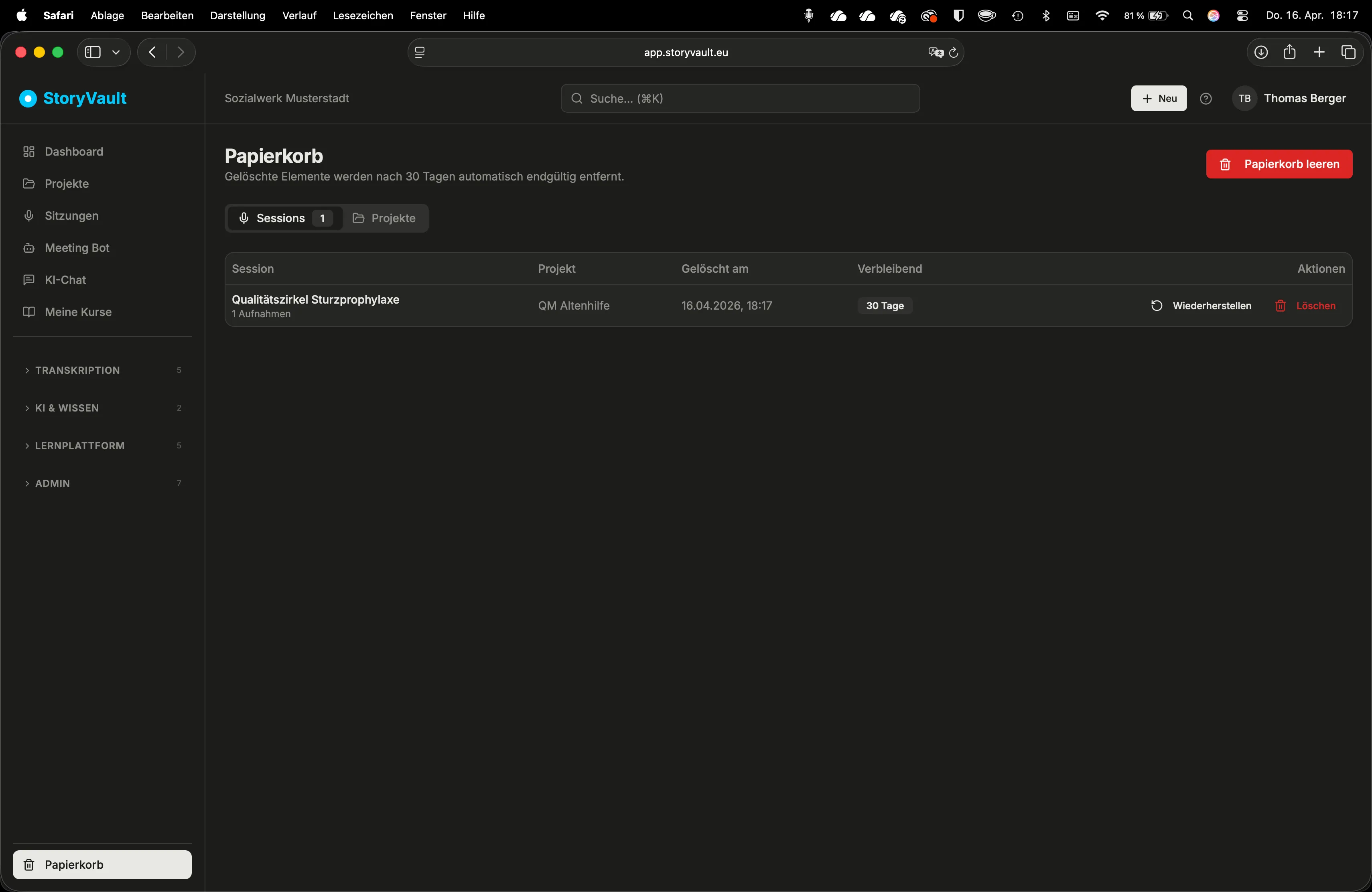
Sidebar → Trash. You see all deleted entries with the time of deletion and the time remaining until permanent removal.
-
Restore
Click “Restore” next to an entry. The session or project immediately reappears in its original location — in the same project, with all recordings, transcripts, and chats.
-
Permanently delete manually
If you don’t want to restore an entry, you can permanently remove it manually. This irreversibly deletes all associated data — recordings, transcripts, summaries, and files.
The 30-Day Rule
Section titled “The 30-Day Rule”After 30 days, entries in the trash are automatically deleted permanently. This automatic cleanup runs daily. You don’t need to worry about it — but you have 30 days to recover accidentally deleted content.
In the trash, you can see how many days remain for each entry.
What Gets Deleted?
Section titled “What Gets Deleted?”| Entry type | What happens on permanent deletion |
|---|---|
| Session | All recordings, transcripts, summaries, attachments, AI chats, and media files are removed |
| Project | All associated sessions are also deleted (including their content) |
| Course (LMS) | Course structure with modules, lessons, and quiz questions is removed |
Empty Trash
Section titled “Empty Trash”Administrators can empty the entire trash at once. This immediately and permanently removes all entries.
Relationship with Archive
Section titled “Relationship with Archive”The trash is the final stage in an entry’s lifecycle:
Active → Archived (hidden but accessible) → Trash (30 days until deletion)
Archiving is therefore the gentler alternative to deleting. If you just want to remove content from the default view without losing it, use Archive instead.
Further Reading
Section titled “Further Reading”This page corresponds to the onboarding video “Module 3, Lesson 3.4 — Trash”.