Overview — What Is StoryVault?
StoryVault automatically turns your conversations — team meetings, supervisions, case conferences, training sessions — into searchable transcripts. An AI helps you analyze the content.
The Three Core Areas
Section titled “The Three Core Areas”- Transcription — Recordings are automatically transcribed. With a synchronized player, speaker recognition, and full-text search.
- AI Analysis — Ask questions about your content. The AI analyzes based on what was actually discussed.
- Learning Module (LMS) — Share knowledge as structured courses with employees. Especially valuable for onboarding new professionals.
The Dashboard
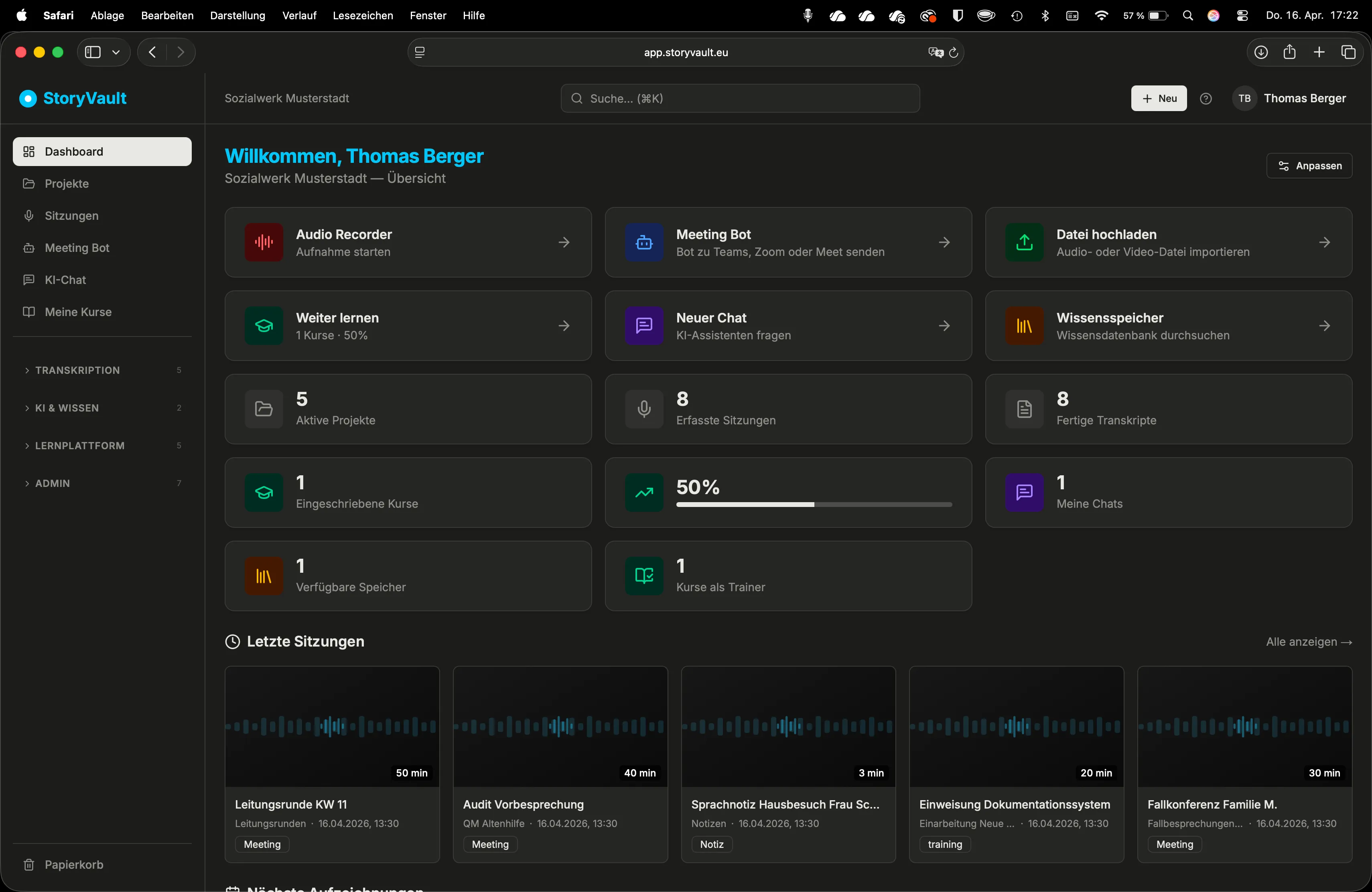
Section titled “The Dashboard”After logging in, you see the dashboard with:
- Quick access — Recorder, Meeting Bot, and Upload File
- Statistics cards — your key metrics at a glance
- Recent sessions — direct access to current transcripts
Navigation
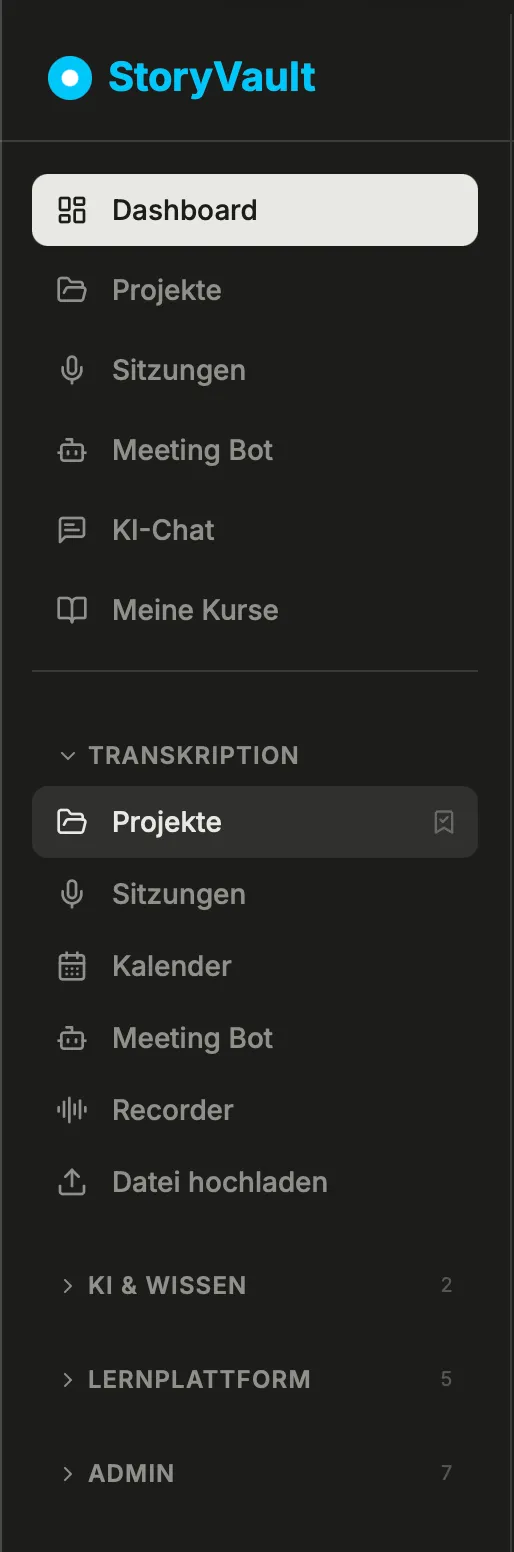
Section titled “Navigation”In the left sidebar, you’ll find:
| Area | Description |
|---|---|
| Dashboard | Home page with quick access |
| Transcription | Projects, sessions, calendar, Meeting Bot, recorder |
| AI | Standalone chat (Module: AI) |
| LMS | Courses, progress, management (Module: LMS) |
| Knowledge | Knowledge store (Module: Knowledge) |
| Administration | Users, groups, costs (admins only) |
| Trash | Restore deleted content |
In the top bar: the organization name on the left, Search in the center (searches all transcripts), on the right the plus button, help icon, and your user menu.
Color Mode and Personalization
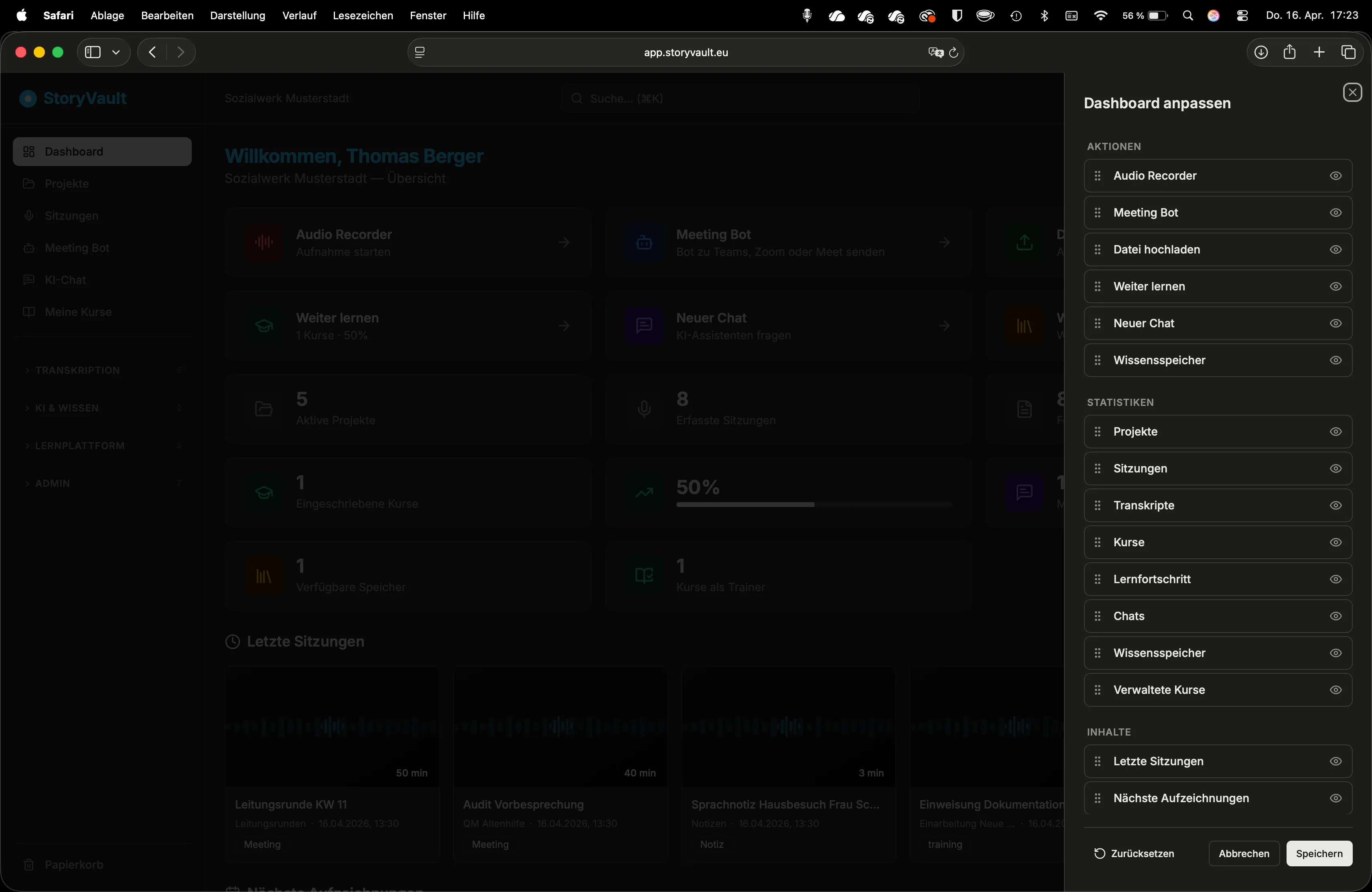
Section titled “Color Mode and Personalization”In the user menu (top right), switch between light and dark mode. Under “Settings”, adjust language (German/English) and other options. Use the “Customize Dashboard” button to show or hide widgets and content.
Next Step
Section titled “Next Step”Ready for your first recording? Continue to the Upload Guide.
This page corresponds to the onboarding video “Module 1, Lesson 1.1 — Welcome and First Overview”.