Code a transcript
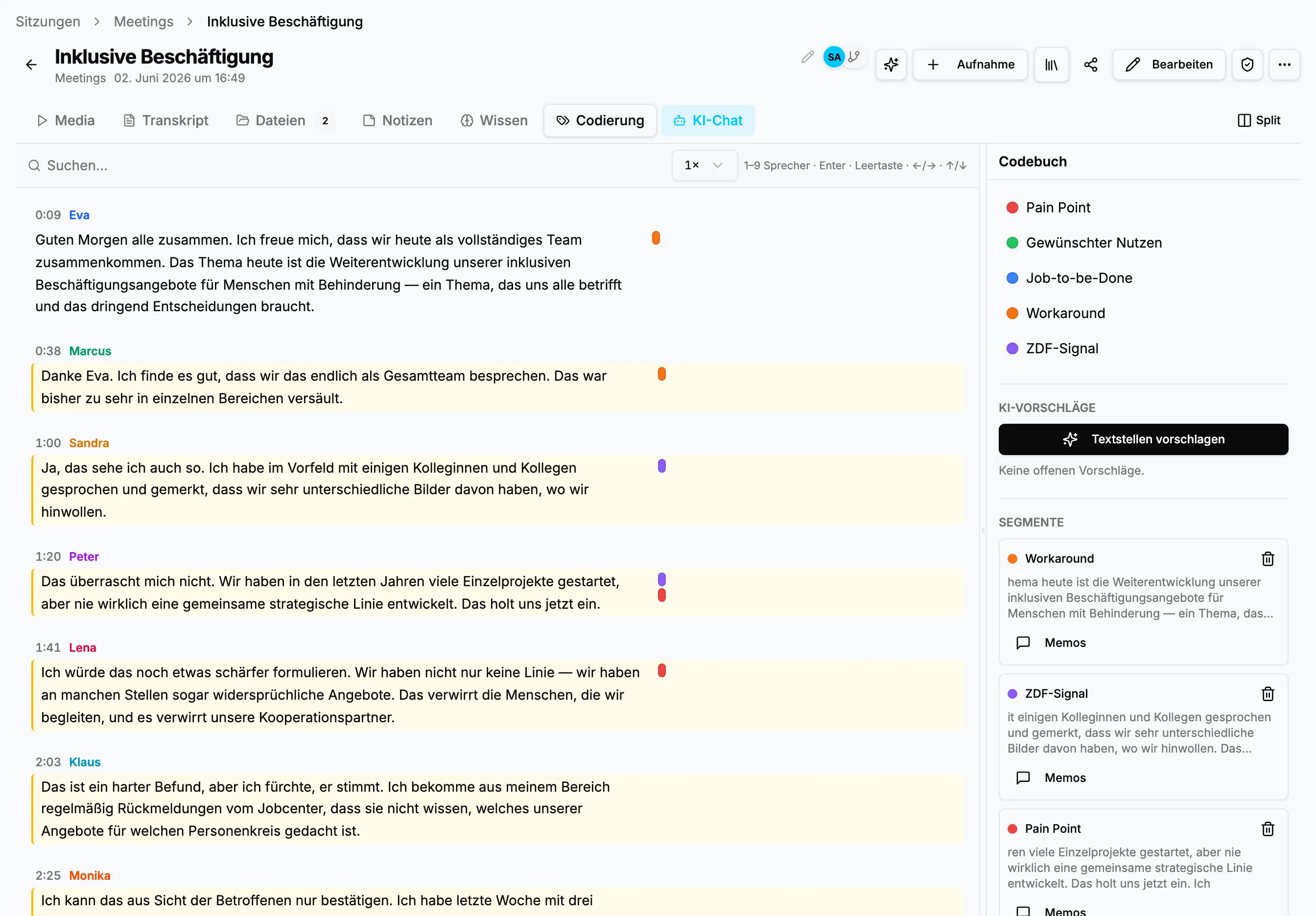
The Coding tab shows the transcript on the left and the project codebook, AI suggestions, and saved segments on the right. Colored markers reveal codes directly in the text.
Code a passage
Section titled “Code a passage”- Open a session and select Coding.
- Find the relevant statement or use playback to jump to it.
- Select the exact text that supports your interpretation.
- Choose the code in the right panel.
- Add a memo when the choice needs an explanation.
- Check the saved segment in the sidebar; selecting it returns to the passage.
Selections can span several utterances. Include enough context to make a later quote understandable, but avoid selecting a page when one sentence carries the meaning.
Multiple codes and memos
Section titled “Multiple codes and memos”A passage may describe a problem, a desired benefit, and a verifiable number. Assign several codes when each adds analytic meaning. Use memos for unusual decisions, team questions, contradictions, methodological choices, and early hypotheses. Write them so another person understands the decision without a separate explanation.
Review AI suggestions
Section titled “Review AI suggestions”Suggest passages analyzes the transcript against the current codebook. Suggestions are not completed coding. Review each one in context and accept or reject it. Open suggestions do not appear in reports. Precise descriptions improve proposals but never replace domain review.
Open a saved segment to jump to its position, add a memo, or remove the assignment. Removing a code does not change the transcript or recording. Use the transcript editor for text changes.
After re-transcription, accepted segments and memos remain. StoryVault remaps clear matches and flags uncertain ones. Verify text, speaker, time position, and context before continuing to Coding Reports.