Manage Sessions
A session is the central container in StoryVault. It contains one or more recordings, the associated transcript, an automatic summary, notes, and AI chat. Every session belongs to a project.
Session List
Section titled “Session List”The session list is your central overview. Here you see recordings you can access in the active tenant.
Two views are available:
- Card view: Sessions as clear tiles with title, project, type, status, date, and duration. For videos, you see a thumbnail.
- Table view: Compact display for quick sorting — click a column header to sort by date, title, or duration.
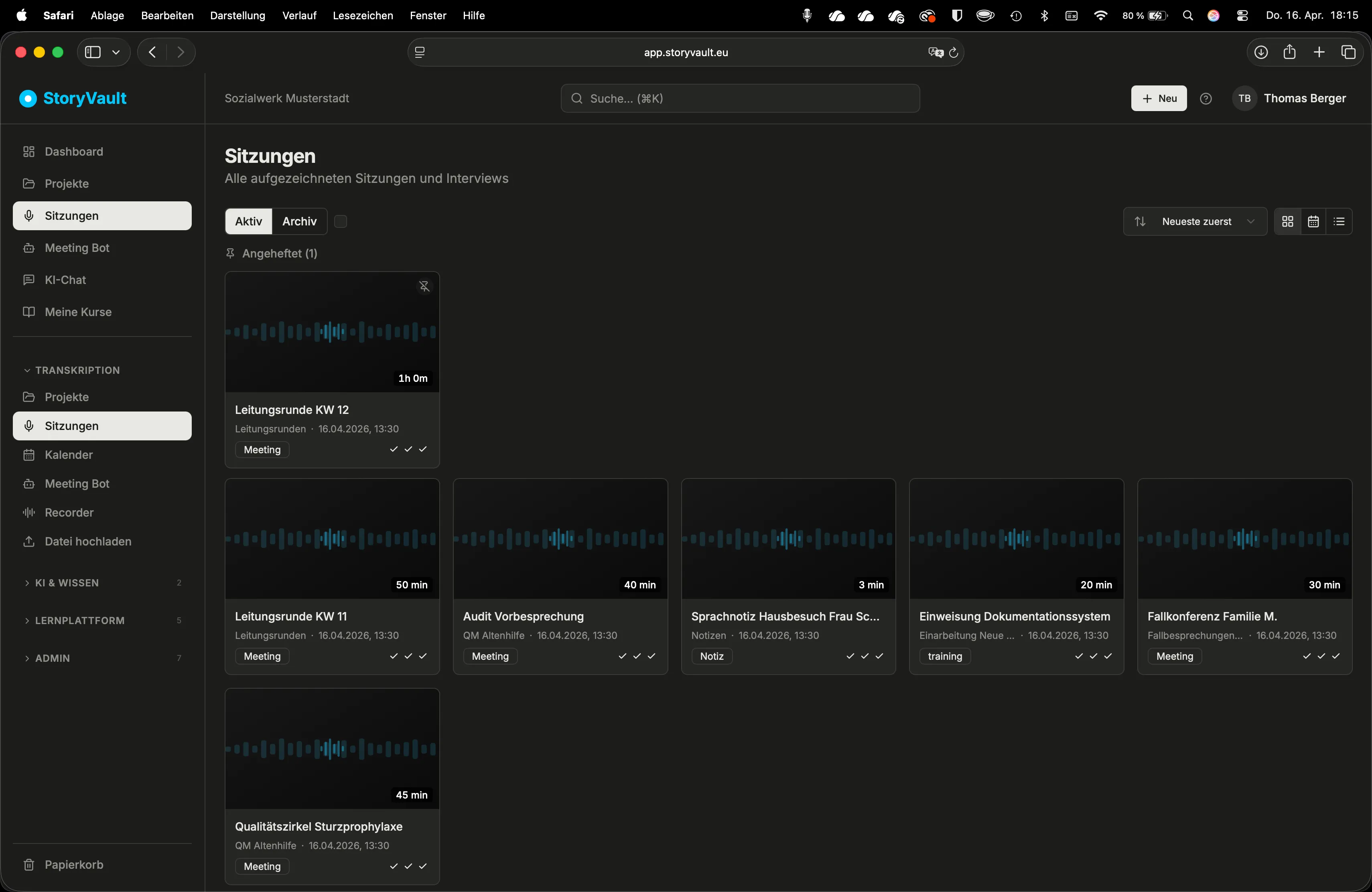
The list updates automatically every 60 seconds. No manual refresh needed.
How It Works
Section titled “How It Works”-
Open the session list
Sidebar → Sessions. You see all your recordings, sorted by date.
-
Open a session
Click on a session. The detail page shows the title, project, type, and status at the top. Directly below: the automatic summary.
-
Use the transcript with player
Press Play — the text scrolls automatically and the current position is highlighted. Click on a text passage to jump the player there. Different speakers are automatically distinguished.
-
Rename speakers
Click on a speaker name (e.g., “Speaker 0”) and enter the correct name. Then it shows “Ms. Müller” instead of “Speaker 0”.
-
Use tabs
Below the transcript, find sections for Media (recordings and files), Transcript (full text for copying), Notes (personal annotations), and AI Chat (ask questions about the transcript).
Session Types
Section titled “Session Types”The type determines which AI analyses are available. A case conference needs different analysis than a specialist lecture.
| Type | Use |
|---|---|
| Meeting | Team, leadership, and staff meetings |
| Interview | Individual conversations, intake interviews |
| Lecture | Specialist talks, webinars, training sessions |
| Workshop | Workshops, planning days |
| Sales Call | Acquisition, initial conversations |
| Note | Pure text notes or voice notes without transcription |
| Other | Anything that doesn’t fit another category |
Status Indicators
Section titled “Status Indicators”| Status | Meaning |
|---|---|
| Created | Session created, recording being processed |
| Processing | Media file being prepared |
| Transcribing | Audio being transcribed |
| Completed | Transcript ready, AI chat available |
Editing a Session
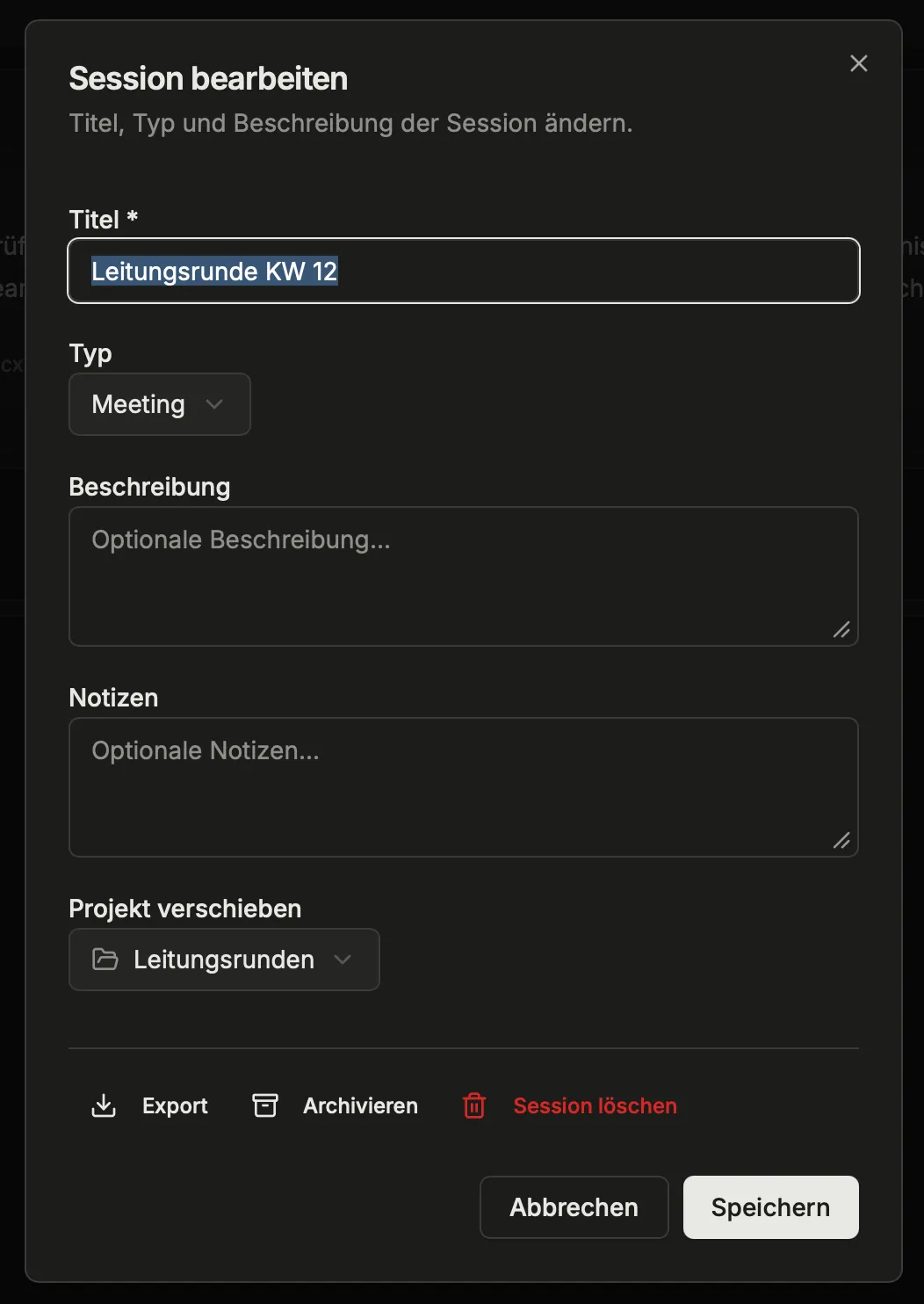
Section titled “Editing a Session”Use the Edit button on the detail page to change the title, description, project, and type. Here you’ll also find options to archive and delete.
Multiple Recordings per Session
Section titled “Multiple Recordings per Session”A session can contain multiple recordings. When you upload additional files later, all transcripts are automatically merged into a combined transcript. You can adjust the order of recordings.
The combined transcript is available for download as TXT, SRT, or VTT.
Automatic Summary
Section titled “Automatic Summary”If Automatic summary is enabled for the project, a summary is requested after transcription. Admins change this setting when editing the project. A completed transcription therefore does not automatically mean a summary is available. First check this setting, then processing status.
AI Titles from Content
Section titled “AI Titles from Content”Recordings from bots and imports are often called just “Teams meeting 2pm” — not very helpful in long lists. StoryVault can therefore generate a meaningful title and short description from the conversation content:
- Single session: Use the AI action next to the title on the detail page.
- Whole project: Start title generation for all sessions in the project edit dialog. Processing runs in the background; you can keep working normally.
Two rules apply:
- Manually assigned titles are not overwritten — the AI only replaces automatically generated titles (e.g. from bot recordings or imports).
- The original title and description are kept. “Restore original” takes you back to the previous state at any time.
AI Chat at Session Level
Section titled “AI Chat at Session Level”In the “AI Chat” tab, you ask questions directly about the transcript. The AI has the entire conversation as context as a source. AI answers can still be wrong; check important claims against the original.
At the top of the chat, you’ll find predefined analysis templates (e.g., “Summary”, “Tasks”, “Decisions”). One click starts the analysis automatically.
Further Reading
Section titled “Further Reading”This page corresponds to the onboarding video “Module 3, Lesson 3.2 — Manage Sessions”.