Reading and Navigating the Transcript
Once transcription is complete, you can play back the original audio while reading along. No more taking notes during meetings. No more “Who said what again?” the next day.
The Session Page
Section titled “The Session Page”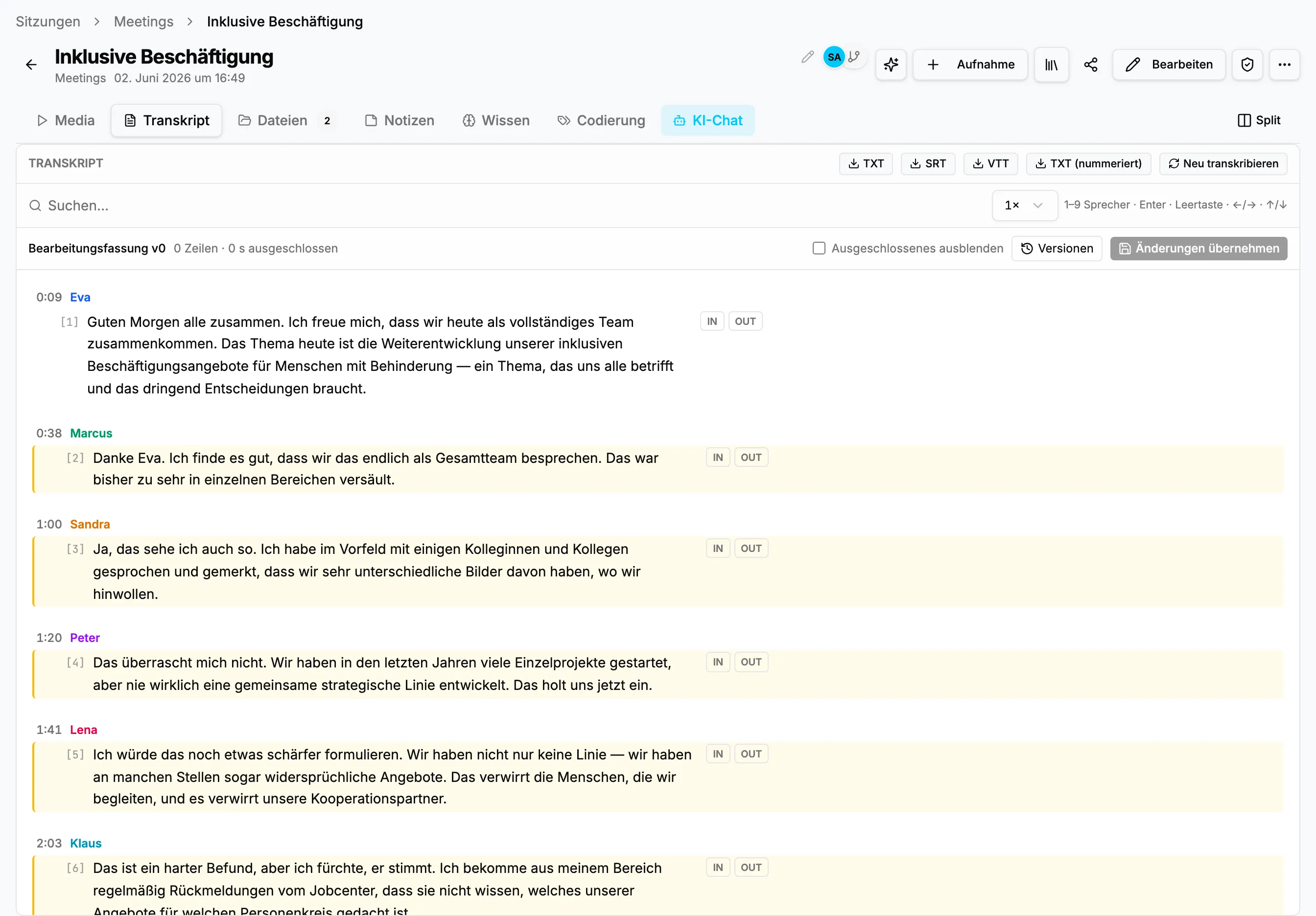
The session page is the heart of StoryVault:
- Top: Title, project, type, status. Buttons for editing and sharing on the right.
- Tabs: Recording, Transcript, Files, Notes, Knowledge, Coding, and AI Chat open the available work areas.
- Player + Transcript: Text stays synchronized with playback. The current position is highlighted.
Synchronized Player
Section titled “Synchronized Player”Press Play — the text scrolls automatically. The current text passage is highlighted, and you can see who is currently speaking.
This also works in reverse: Click on a text passage and the player jumps to exactly that point. Handy when you want to listen to a specific statement again.
Speaker Recognition
Section titled “Speaker Recognition”Different speakers are automatically distinguished: “Speaker A”, “Speaker 1”, etc. These labels can be renamed — click on a name and enter the correct one.
Tabs Below the Transcript
Section titled “Tabs Below the Transcript”| Tab | Content |
|---|---|
| Recording | Play the recording and inspect media details |
| Transcript | Read, search, export, and edit with the required permission |
| Files | Attachments and other session files |
| Notes | Session annotations |
| Knowledge | Linked knowledge content (Module: Knowledge) |
| Coding | Qualitatively code passages (Module: Coding) |
| AI Chat | Ask questions about the session (Module: AI) |
Next Step
Section titled “Next Step”Next, learn how to edit a transcript, compare versions, or code passages.
You can also explore every recording method: Upload File, Recorder, or Meeting Bot.
If your organization uses the AI module, learn how to use AI analysis at AI Features.
This page corresponds to the onboarding video “Module 1, Lesson 1.3 — Reading and Navigating the Transcript”.