Archive & Pins
Over time, many sessions accumulate. Archive and pins help you stay organized: archiving hides completed content from the default view. Pins highlight important entries so you can find them quickly.
Archive
Section titled “Archive”Archived sessions and projects are not deleted — they remain fully accessible, just no longer visible in the default view. Think of the archive as a filing cabinet: tidy, but always within reach.
How to Archive
Section titled “How to Archive”-
Archive a single session
Open the session and click “Edit”. In the dialog, find the “Archive” button. Alternatively, use the context menu in the session list.
-
Archive multiple sessions at once
In the session list, select multiple entries (checkboxes). The “Archive” button appears in the bulk action bar.
-
Archive a project
On the project detail page, find the archive option in the edit dialog. Important: sessions within an archived project are not automatically archived along with it. You can archive sessions and projects independently.
Archive View
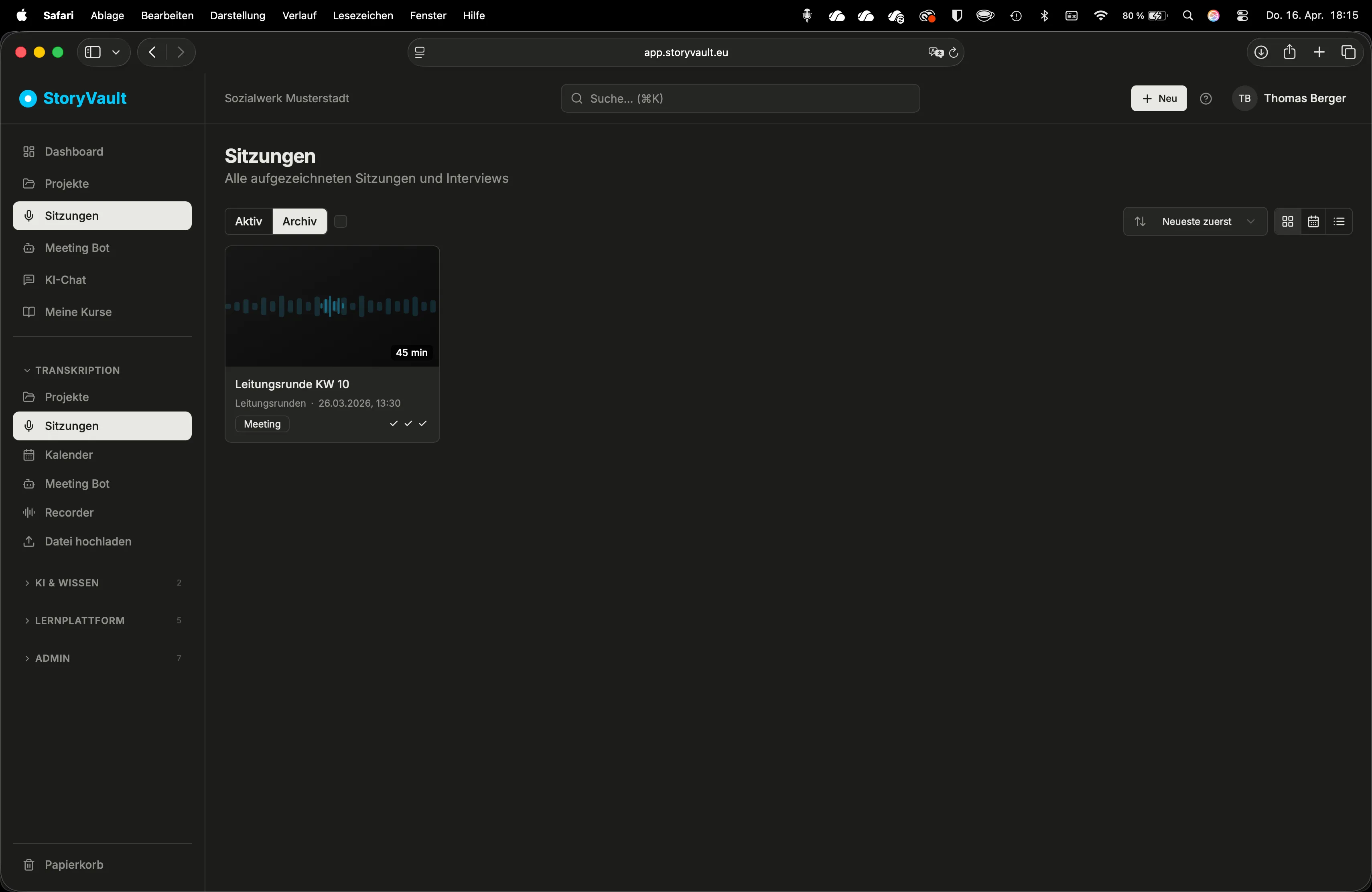
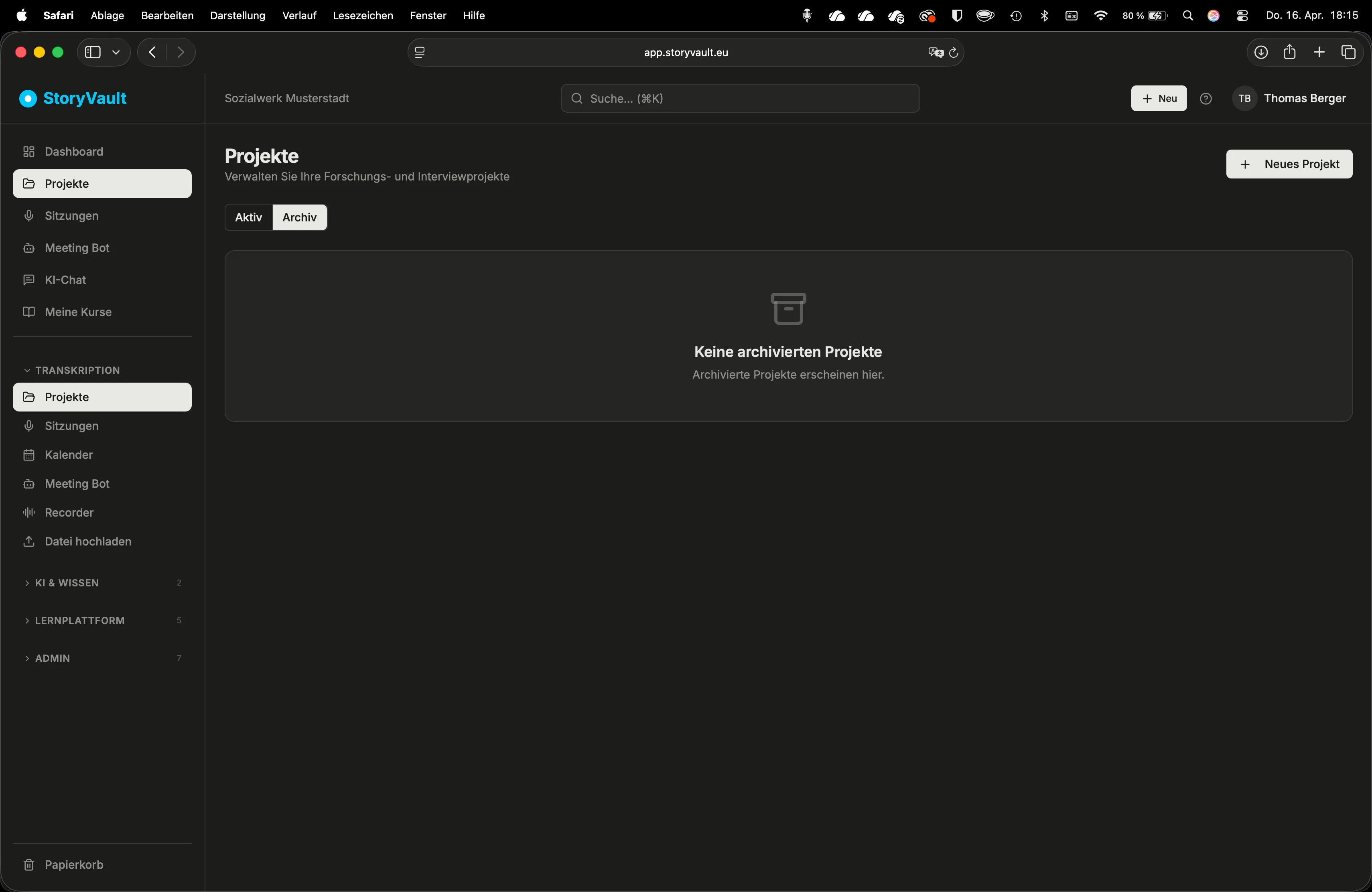
Section titled “Archive View”On the session and project pages, you’ll find tabs: Active and Archive. Switch to the archive tab to see all archived entries.
Restoring
Section titled “Restoring”To restore an archived session or project, open it in the archive tab and click “Restore” in the edit dialog. The entry reappears in the active view.
Archive and Search
Section titled “Archive and Search”Archived content does not appear in search results by default. This keeps search focused on current, relevant content.
Personal Pins
Section titled “Personal Pins”Pins are your personal bookmarks. Pinned sessions and projects appear at the very top of their respective list — prominently highlighted. Pins are only visible to you; other users don’t see your pins.
How to Pin
Section titled “How to Pin”-
Pin a session
Hover over a session card. A pin icon appears. Click it to pin the session.
-
Pin a project
On the project page, hovering over a project card also shows the pin icon.
-
Remove a pin
Click the pin icon again to remove the pin. The entry moves back to its normal position in the list.
Where Do Pinned Entries Appear?
Section titled “Where Do Pinned Entries Appear?”Pinned sessions and projects are grouped at the top of their respective list, marked with a pin icon. This keeps your most important entries always visible without scrolling.
Limits
Section titled “Limits”You can pin up to 50 sessions and 50 projects per organization. In practice, this is more than enough for all current priorities.
Archive, Pins, and Trash — The Difference
Section titled “Archive, Pins, and Trash — The Difference”| Feature | What happens | Visible to | Reversible |
|---|---|---|---|
| Pin | Entry is highlighted at top of list | Only you personally | Immediately (remove pin) |
| Archive | Entry is hidden from default view | Visible to everyone in archive tab | Immediately (restore) |
| Trash | Entry is permanently deleted after 30 days | Visible in trash | Within 30 days |
Further Reading
Section titled “Further Reading”This page corresponds to the onboarding video “Module 3 — Organization and Collaboration”.