StoryVault on iPhone
In addition to the browser recorder, there is a native app for iPhone: the StoryVault Recorder. Especially useful for recordings on the go — home visits, site visits, or on-site meetings.

Installation and Login
Section titled “Installation and Login”-
Install the app
Search in the App Store for “StoryVault Recorder” and install the app.
-
Log in
Sign in with your usual email address and password. The app automatically connects to your StoryVault account.
Making a Recording
Section titled “Making a Recording”The interface is intentionally simple — three steps to a finished recording:
-
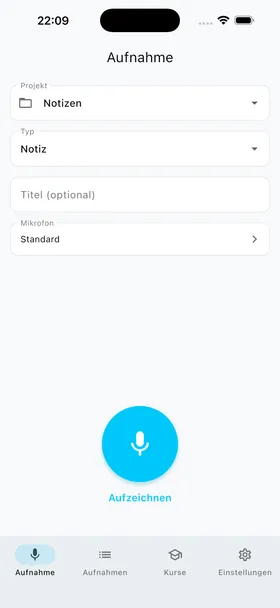
Select project, type, and title
At the top, select the project and session type. Optionally enter a title. Below, you can select the microphone.
-
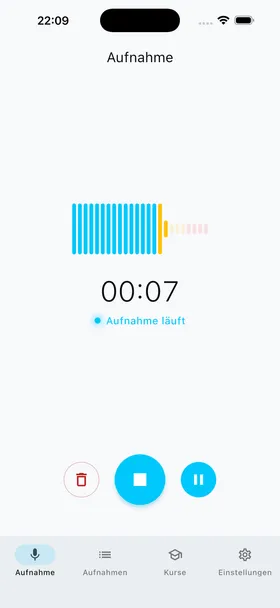
Start recording
Tap the record button. The real-time level meter shows whether the microphone is picking up well. Use the pause button to pause at any time. The trash button discards the recording.
-
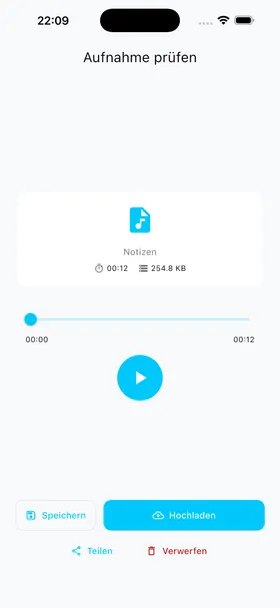
Review and upload
After stopping, you can listen back to the recording. Everything sounds good? Then tap “Upload” — the app transfers the file in the background. With “Save”, you save the recording locally for later upload.
Managing Recordings
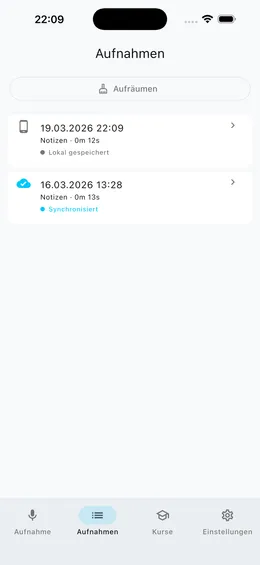
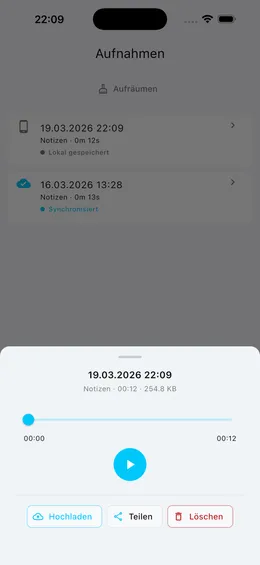
Section titled “Managing Recordings”In the “Recordings” tab, you see all your recordings with sync status. Tap an entry for details — there you can play, upload, share, or delete the recording.
Offline Support
Section titled “Offline Support”Recordings can be saved locally. Save alone does not start an upload: Upload adds a recording to the transfer queue. Requested uploads are retried after connectivity returns while the app can run synchronization. Closed apps, paused uploads, missing authentication or exhausted retries can prevent continuation.
| Status | Meaning and next step |
|---|---|
| Saved locally | Device only. Listen and choose Upload when ready. |
| Waiting to retry | Check connectivity and the displayed waiting time. |
| Uploading / Confirming | Transfer or server confirmation is in progress; do not import again in parallel. |
| Synced | Upload confirmed; server-side transcription may still be running. |
| Failed | Check the exact error and deliberately use the offered retry. |
| Recording interrupted | Keep the local file and check playback before uploading. |
For a stuck upload, open the app and check active tenant, project and the existing recording’s status. Newer versions show local recordings under Recordings → project selection → Upload status. Check the installed version if the interface differs. Do not clear app data or reinstall while local originals are not backed up.
LMS Courses in the App
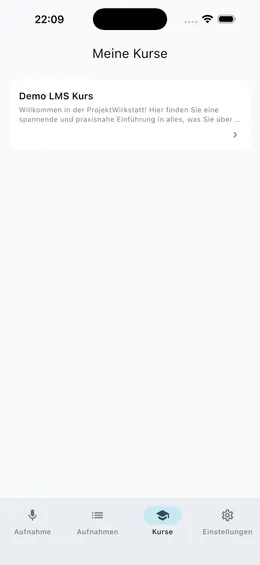
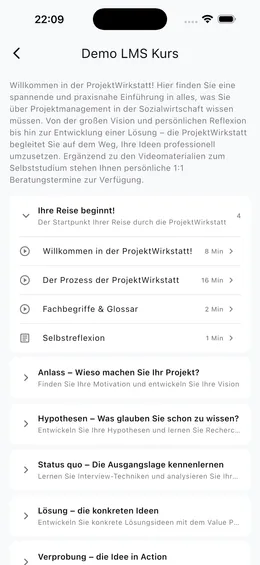
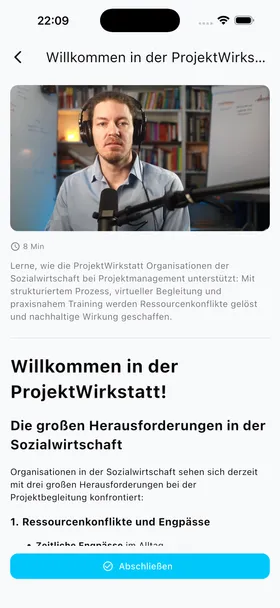
Section titled “LMS Courses in the App”The app also provides access to your LMS courses. In the “Courses” tab, you see all the courses you are enrolled in. Tap on a course for the course structure with modules and lessons — including video player and lesson content.
The Four Sections of the App
Section titled “The Four Sections of the App”| Tab | Function |
|---|---|
| Record | Select project, record, review, upload |
| Recordings | Manage all recordings with sync status |
| Courses | Work through LMS courses (Module: LMS) |
| Settings | Account, StoryVault address, about the app |
Design
Section titled “Design”The app is visually aligned with the web platform — same brand colors (cyan accent), same icons, familiar navigation logic.
Further Reading
Section titled “Further Reading”This page corresponds to the onboarding video “Module 2, Lesson 2.7 — StoryVault on iPhone”.