Finding and Working Through Courses
The learning module lets you work through structured courses — with videos, texts, and knowledge checks. In social services, this is especially valuable for onboarding new employees, mandatory training like hygiene or data protection, and professional development for entire teams.
Course Overview
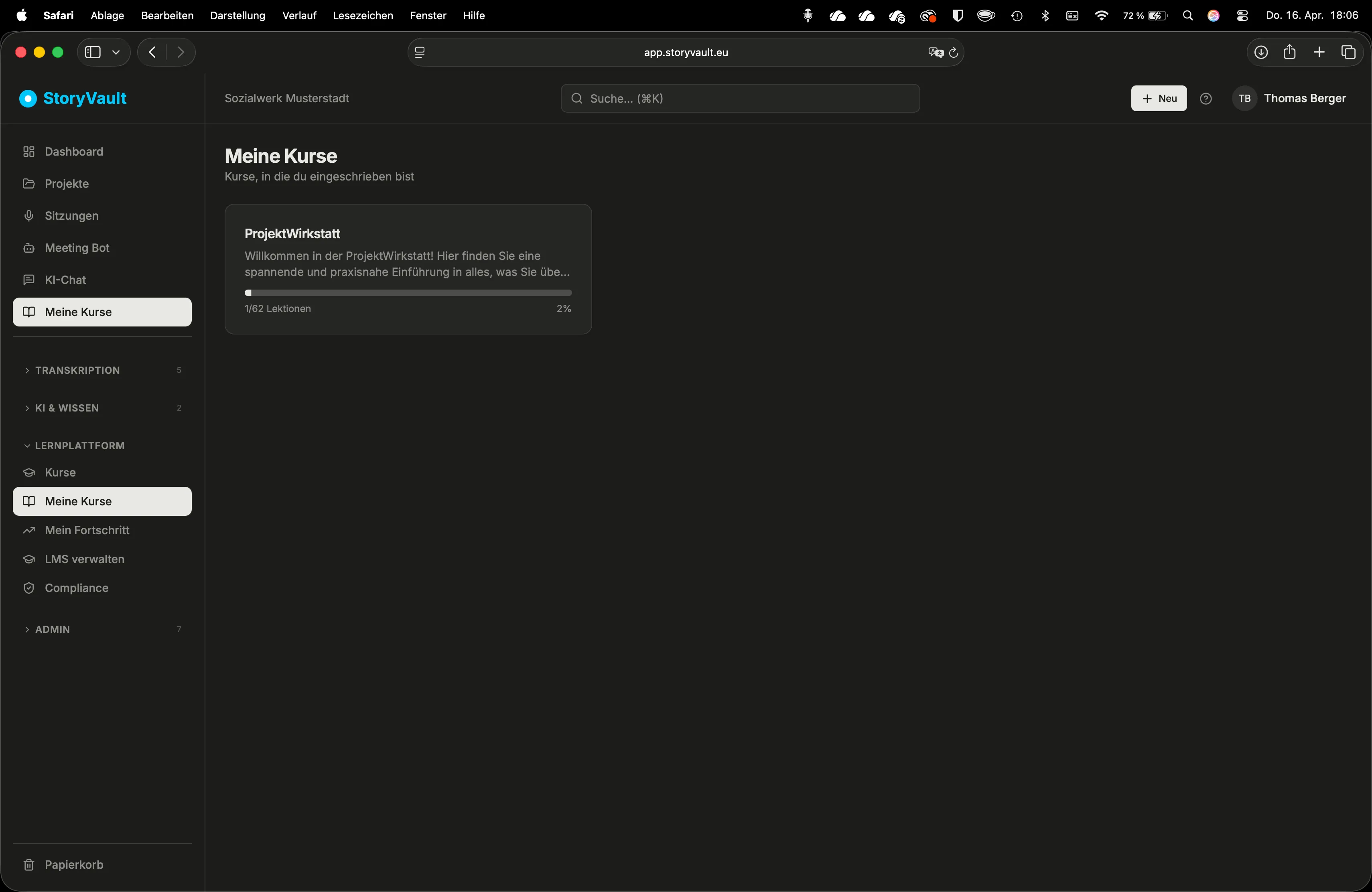
Section titled “Course Overview”Navigate to Courses via the sidebar. The overview is divided into two sections:
- My Courses — the courses you are enrolled in, each with a progress bar.
- Course Catalog — all published courses in your organization.
Pay attention to Mandatory Courses. These are specially marked and often have a deadline. Mandatory courses have been assigned to you by your organization — for example, an annual hygiene training or a data protection briefing.
Opening a Course and Understanding the Structure
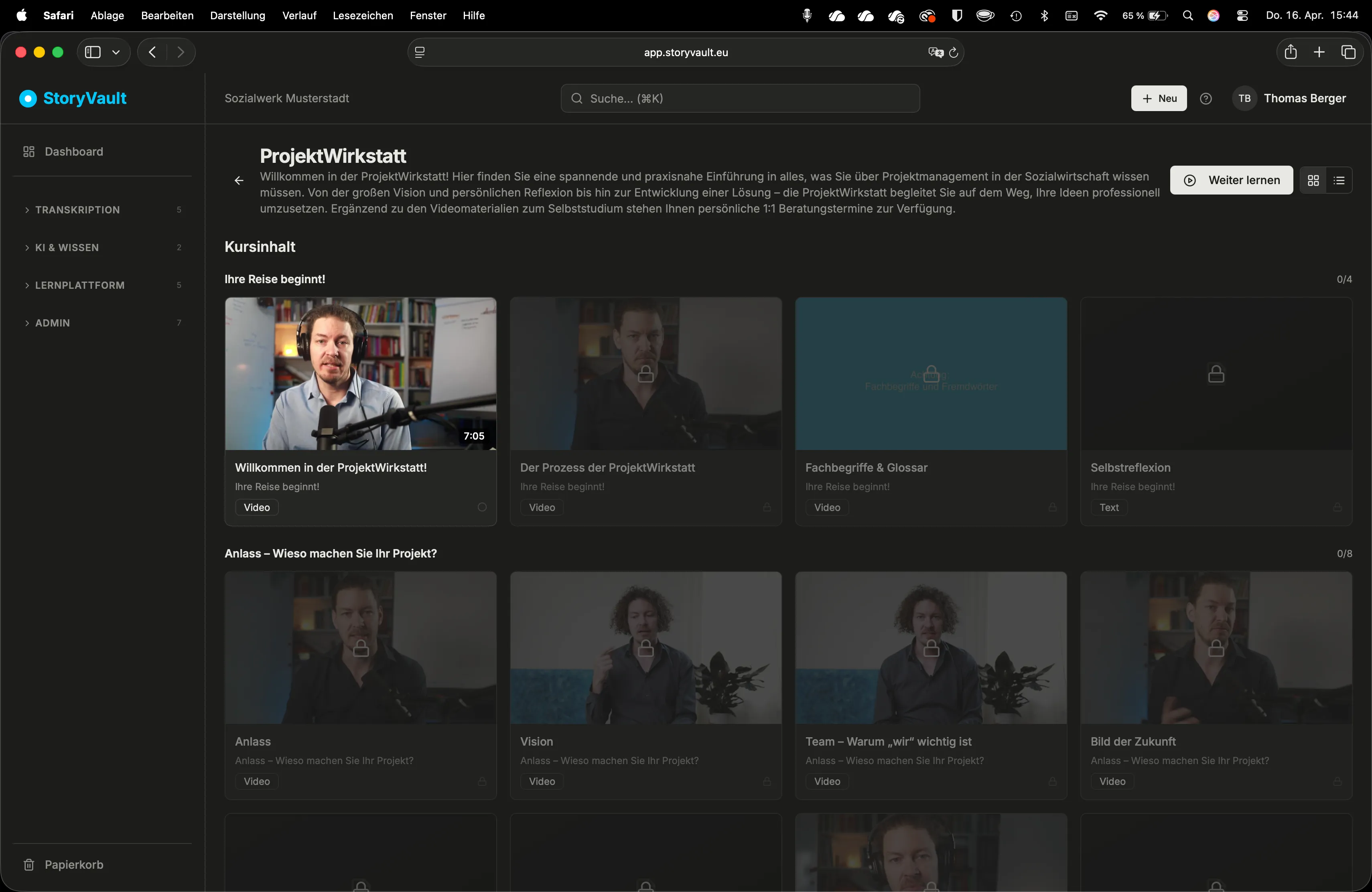
Section titled “Opening a Course and Understanding the Structure”Every course is divided into modules and lessons:
| Level | Description |
|---|---|
| Course | The overarching topic (e.g., “Inpatient Care Onboarding”) |
| Module | A thematic block (e.g., “Basics”, “Advanced Topics”) |
| Lesson | A single learning unit with text, video/audio, and optionally a knowledge check |
The status icons show your progress:
- Open circle — not yet started
- Green checkmark — completed
- Lock — locked (you must complete the previous lesson first)
Working Through a Lesson
Section titled “Working Through a Lesson”-
Open a lesson
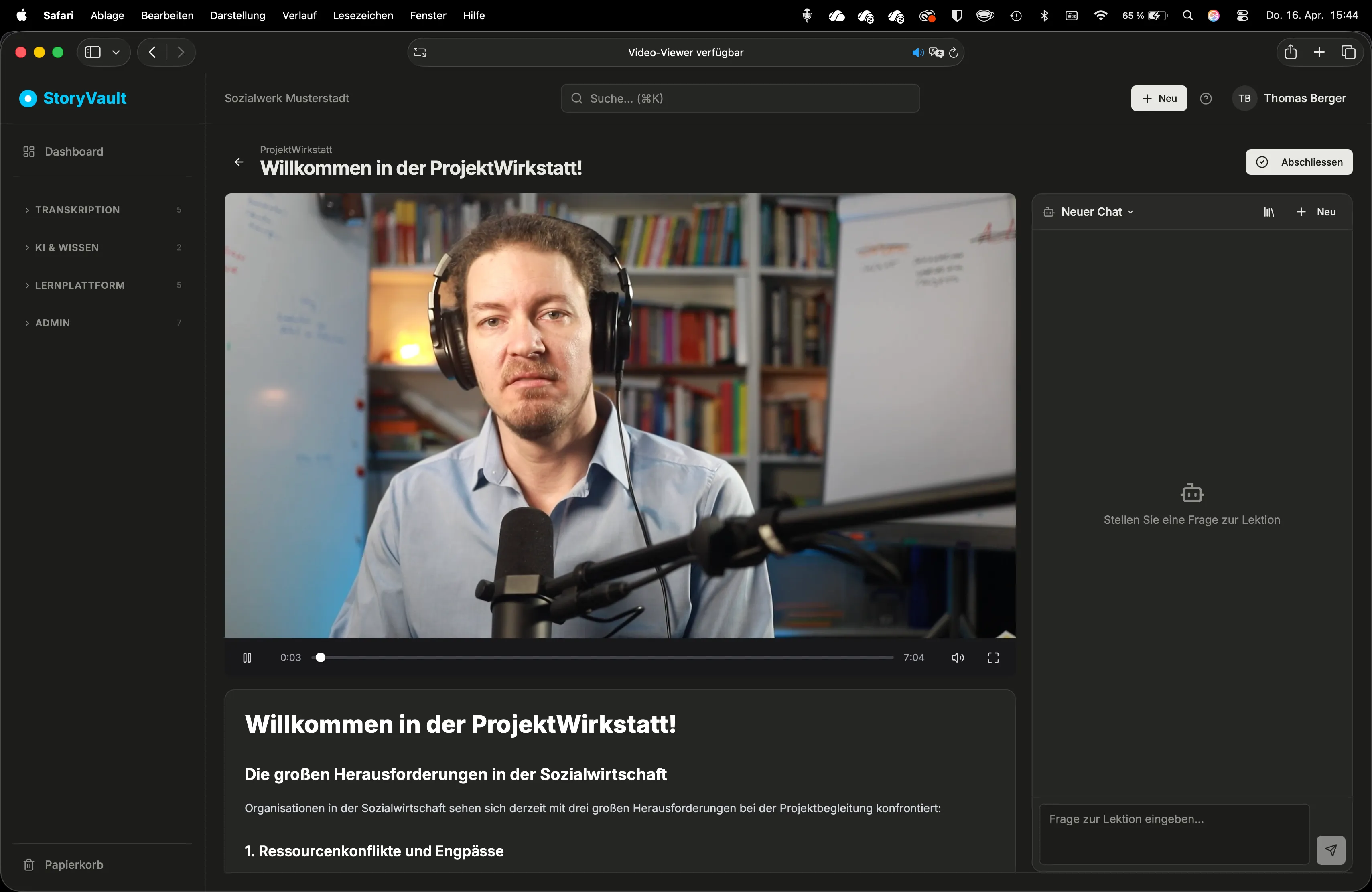
Click on an unlocked lesson. At the top you’ll find the player — if a video or audio is attached. Below that, the synchronized transcript. Next to it, the written lesson text.
-
Work through the content
Read the lesson text and watch or listen to the attached media. The text scrolls automatically along with the player.
-
Complete the lesson
Click “Complete”. Depending on whether questions are set up, a knowledge check will start — or the lesson will be marked as completed directly.
Self-Enrollment
Section titled “Self-Enrollment”You can enroll yourself in any published course. In the course catalog, click on the desired course and then click “Enroll”. The course will then appear under “My Courses”.
Further Reading
Section titled “Further Reading”This page corresponds to the onboarding video “Module 5, Lesson 5.1 — Finding and Working Through Courses”.