Use in Chat
The real value of your Knowledge Stores emerges in AI chat. Connect one or more stores to a chat — and ask questions across your entire knowledge base.
Connecting a Knowledge Store to a Chat
Section titled “Connecting a Knowledge Store to a Chat”-
Open a chat
Sidebar → Chat → start a new chat or open an existing one.
-
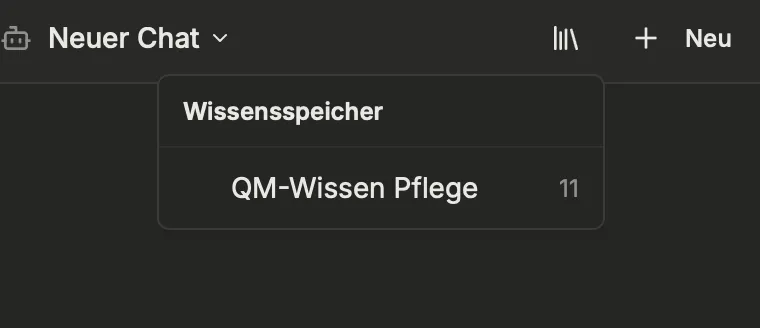
Open the Knowledge Store picker
In the chat window, you’ll find the Knowledge Store picker. Click it to see the available stores.
-
Select stores
Select one or more Knowledge Stores. A badge in the chat shows the connected stores.
-
Ask a question
Ask your question as usual. The AI automatically searches all connected stores for relevant content.
Using Multiple Stores Simultaneously
Section titled “Using Multiple Stores Simultaneously”You can connect multiple Knowledge Stores to one chat at the same time. The AI then searches all stores in parallel and combines the most relevant results.
Example: You connect the “QM Knowledge Care” store and the “Service Instructions” store simultaneously. Then you ask: “What is the procedure for a fall incident and where is it documented?” — The AI finds both the QM minutes and the official service instruction.
Switching Stores Dynamically
Section titled “Switching Stores Dynamically”The connection is dynamic. You can add or remove stores at any time without starting a new chat. If you remove a store, it won’t be searched for future questions — but previous answers remain.
Practical Examples
Section titled “Practical Examples”Onboarding New Employees
Section titled “Onboarding New Employees”Create a Knowledge Store with all onboarding materials: service instructions, training materials, frequently asked questions. New employees connect this store in Standalone Chat and ask:
- “How do I call in sick?”
- “Where do I find the documentation guidelines?”
- “What do I need to consider when administering medication?”
The AI answers based on your actual documents — not generic knowledge.
Preparing for Inspections and Audits
Section titled “Preparing for Inspections and Audits”Collect all QM circle minutes in one store. Before an inspection, ask:
- “What measures for fall prevention have been discussed in recent months?”
- “How has our approach to wound care changed?”
- “What open issues are there in the area of hygiene?”
Cross-Organizational Collaboration
Section titled “Cross-Organizational Collaboration”Fill a shared store with all project minutes. All participants can ask questions without having to work through individual documents.
How the AI Works with the Knowledge Store
Section titled “How the AI Works with the Knowledge Store”When you ask a question, the following happens:
- Your question is converted into a semantic search
- The most relevant text sections from all connected stores are found
- These sections are passed to the AI as context
- The AI formulates an answer based on this specific content
This means: the AI doesn’t invent content but refers to your actual documents and minutes. If the knowledge base contains no relevant information for your question, the AI will say so.
Tips for Better Results
Section titled “Tips for Better Results”- Ask specific questions. “What is our procedure for pressure ulcer prevention?” delivers better results than “Tell me something about care.”
- Add new sources regularly. The more current the knowledge base, the more relevant the answers.
- Use shared stores for team knowledge. This way, all employees benefit from the collective knowledge base.
- Combine different source types. Transcripts provide discussion knowledge, files provide official guidelines, free texts fill gaps.
Further Reading
Section titled “Further Reading”This page corresponds to the onboarding video “Module 8, Lesson 8.3 — Using the Knowledge Store in AI Chat”.