Analysis Templates
Analysis templates are prepared questions for recurring tasks. One click in Session Chat starts a summary, task list, or decision overview, for example. This helps teams use the same analysis approach for similar sessions.
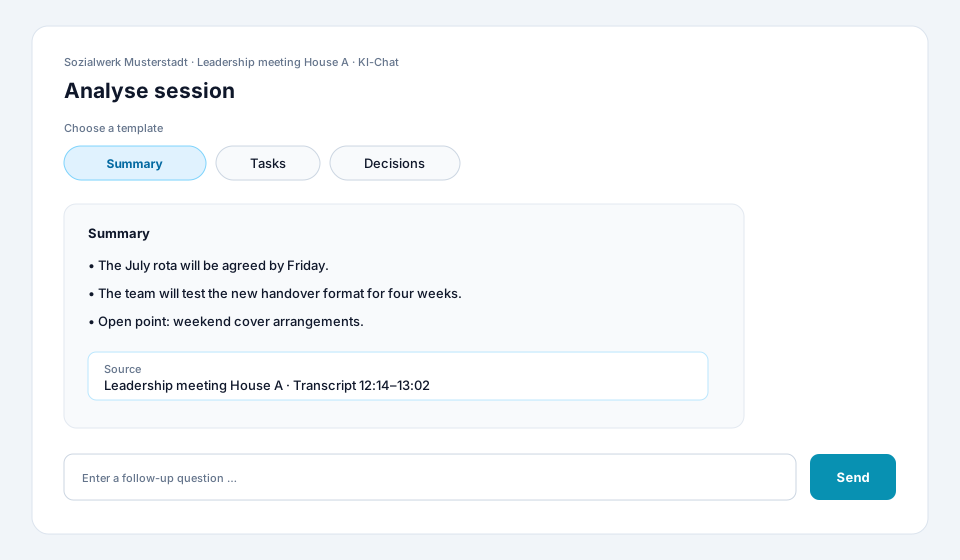
Apply a template
Section titled “Apply a template”-
Open the relevant session
Open a session with a completed transcript and switch to AI Chat.
-
Choose a template
Select the template above the input field that matches your goal. The available buttons can differ by session type.
-
Wait for the analysis
StoryVault sends the prepared question and session transcript to the AI. The result appears as a new chat response.
-
Verify the result
Compare names, numbers, deadlines, and decisions with the cited sources or transcript. Check whether the template asks for information that was not present in the conversation.
-
Refine or reformat
Ask a follow-up question such as
Sort the tasks by responsible personorPresent the decisions as a table. -
Use the verified result
Copy the checked answer into your minutes, task list, or another working document.
Choose the right template
Section titled “Choose the right template”| Goal | Suitable template | What to check |
|---|---|---|
| Quick overview | Summary | Are important opposing views or open points missing? |
| Commitments | Tasks | Were the responsible person and deadline actually stated? |
| Resolutions | Decisions | Are proposals clearly separated from decisions? |
| Follow-up | Open items | Are completed topics incorrectly still listed? |
| Interview analysis | Key statements or themes | Do statements remain in the interviewee’s context? |
Example workflow for a leadership meeting
Section titled “Example workflow for a leadership meeting”- Select Summary and check that every agenda item is represented.
- Select Decisions and verify each resolution against the transcript.
- Select Tasks and mark missing owners or deadlines.
- Ask:
Create a concise table with task, person, deadline, and source passage. - Review the result professionally and transfer it into the work plan.
If templates are missing
Section titled “If templates are missing”- Templates depend on the session type and your organisation’s configuration.
- Check that transcription has finished and AI Chat is available.
- If an expected template is missing, contact your administrator and provide the session type and desired analysis.
- You can still write a free-form question with the same goal.
Good to know
Section titled “Good to know”- Each template selection starts a new AI request.
- A template structures the question but does not replace verification of the result.
- Follow-up questions can refer to the previous answer.
- The templates shown can differ between session types.