Knowledge Graph
The Knowledge Graph adds a structured layer to the Knowledge Store: StoryVault automatically extracts decisions, tasks, people, and relationships from your sessions. Instead of just searching for text passages, you can ask specifically: “Which tasks were assigned to Ms. Müller?” or “Which decisions depend on the new care concept?”
What Gets Extracted?
Section titled “What Gets Extracted?”The AI recognizes the following elements in your transcripts:
| Element | Description | Example |
|---|---|---|
| Decisions | Resolutions made | “We will switch to the new documentation system from Q2” |
| Tasks | Action items and responsibilities | “Mr. Schmidt will review the offers by Friday” |
| Ideas | Suggestions and proposals | “We could introduce a mentoring program” |
| Insights | Important findings | “Occupancy in day care has been declining for three months” |
| Milestones | Achieved goals | “The new QM handbook is complete” |
| Changes | Documented changes | “The duty roster was switched to 12-hour shifts” |
| People | Mentioned and responsible persons | Speakers, responsible parties, participants |
| Topics | Specialist areas and focal points | Care quality, staffing, hygiene |
These elements are linked to each other: a task is assigned to a person, a decision depends on another, a topic connects multiple sessions.
Extracting Knowledge from a Session
Section titled “Extracting Knowledge from a Session”-
Open a session
Navigate to a session with a completed transcript.
-
Click “Extract Knowledge”
The extraction runs in the background and takes a few seconds to minutes depending on transcript length.
-
View the result
After processing, you’ll see the knowledge graph of the session: decisions, tasks, people, and their relationships at a glance.
Project-Wide Knowledge Graph
Section titled “Project-Wide Knowledge Graph”The real value emerges when you view the knowledge graph at project level. StoryVault automatically links people and topics across session boundaries:
- If “Ms. Müller” is mentioned in three different sessions, the system recognizes it’s the same person
- Topics like “care quality” connect all sessions where this topic was discussed
- Tasks from one session can be recognized as completed when referenced in a later session
How to access the project knowledge graph:
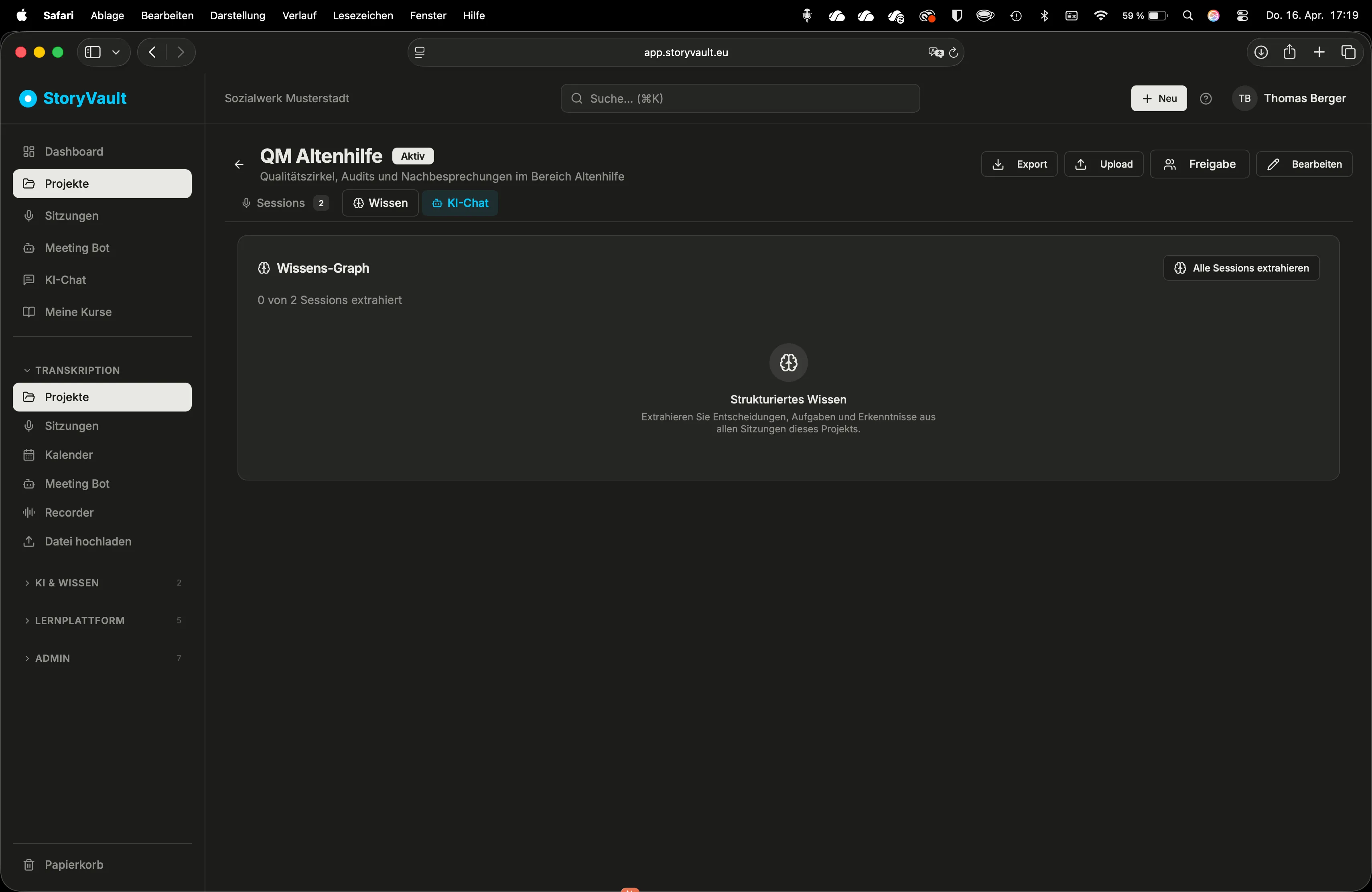
Navigate to the project and open the Knowledge Graph section. You’ll see all extracted elements from all sessions in the project — linked together.
Batch Extraction
Section titled “Batch Extraction”If you have a project with many existing sessions, you can start the extraction for all sessions at once:
Project page → “Extract All Sessions”
The processing runs in the background. Depending on the number of sessions, this may take several minutes.
Knowledge Graph in AI Chat
Section titled “Knowledge Graph in AI Chat”The Knowledge Graph is automatically used in AI chat. When you ask a question in session or project chat, the AI incorporates the structured information. This leads to more precise answers because the AI doesn’t just find text passages — it understands relationships.
Example questions that benefit from the Knowledge Graph:
- “What open tasks are there currently in this project?”
- “Who is responsible for the topic of occupational safety?”
- “What decisions were made in the last three sessions?”
- “Are there tasks that depend on the budget decision?”
Difference from the Knowledge Store
Section titled “Difference from the Knowledge Store”| Knowledge Store | Knowledge Graph | |
|---|---|---|
| Search | Text-based — finds relevant text passages | Structured — finds decisions, tasks, people |
| Sources | Any (sessions, texts, files, lessons) | Automatically from session transcripts |
| Strength | Broad knowledge base, many source types | Relationships and connections |
| Use | Looking up knowledge | Tracking decisions and tasks |
Both systems complement each other: the Knowledge Store provides the broad text base, the Knowledge Graph provides the structured relationships.
Further Reading
Section titled “Further Reading”This page describes the Knowledge Graph (GraphRAG) — structured knowledge extraction from meeting transcripts.