Guided Tours & Help Button
Guided tours explain StoryVault directly in the application. Start a tour when you need it and continue from the same point later.
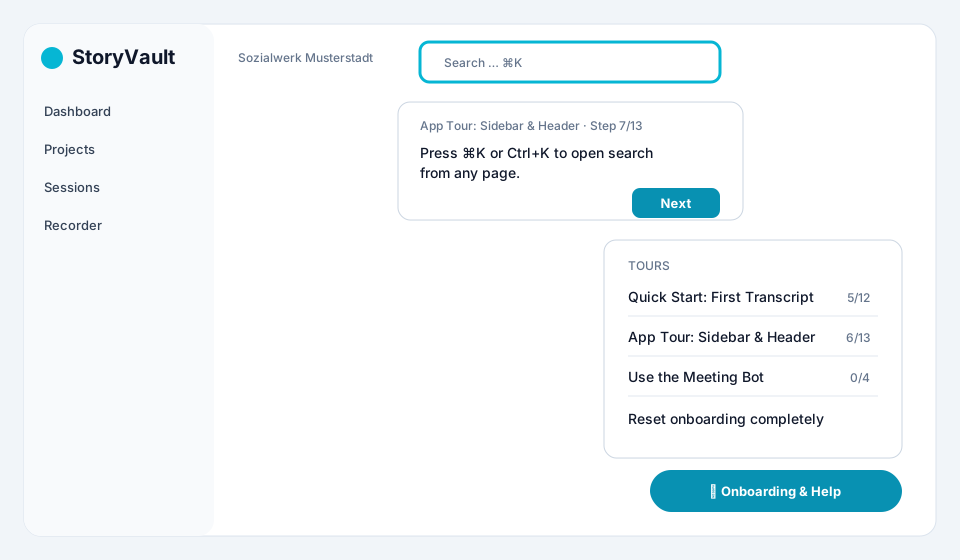
Start a tour
Section titled “Start a tour”-
Open help
Select Onboarding & Help in the lower-right corner. The menu only shows tours that match your role and the modules enabled for your organisation.
-
Choose a tour
Select the task you want to complete, such as Quick Start: First Transcript or Use the Meeting Bot.
-
Complete the steps
StoryVault highlights the relevant element with a coloured outline. The tooltip explains what to do next. Use Next, Back, or Got it to move through the tour.
-
Pause or resume
Close the tour with X if you want to continue later. Your progress is saved. Open Onboarding & Help again and select the same tour to resume it.
Available tours
Section titled “Available tours”| Tour | What you learn |
|---|---|
| Quick Start: First Transcript | Upload a file, open a session, and learn the main areas of a session. |
| App Tour: Sidebar & Header | Understand navigation, search, the create button, user menu, and dashboard. |
| Use the Meeting Bot | Schedule the bot for an online meeting and track its status. |
| Share a Session | Create a share link with suitable access options and revoke it again. |
| Organise Content | Create projects and find content more quickly. |
| Set Up a Knowledge Base | Add sources and use them in knowledge chat. |
| Start Your First Course | Open an assigned course, complete a lesson, and take a quiz. |
| Create Your First Course | Create a course draft, add a lesson, and publish it. |
| Prepare Your Organisation | Invite users, check roles, and learn about available modules. |
| Start an API Integration | Create an API key and open the developer documentation. |
The entries you see depend on your organisation, enabled modules, and permissions. If a tour is missing, contact your organisation administrator.
Reset your progress
Section titled “Reset your progress”Use Reset onboarding completely if you want to start every tour again. The reset only affects your account in the current organisation.
If a tour does not continue
Section titled “If a tour does not continue”- Check whether a dialog is still open, then close or confirm it.
- Navigate to the page named in the tooltip. The tour continues there.
- Close the tour and restart it from Onboarding & Help.
- If an expected menu item is missing, ask your administrator to check the relevant module and permission.