Compare and restore transcript versions
Version history makes transcript changes traceable. It contains saved text, speaker, and cut revisions as well as independent transcription runs. Restoring a version never rewrites history: StoryVault creates a new revision and makes its content the working basis.
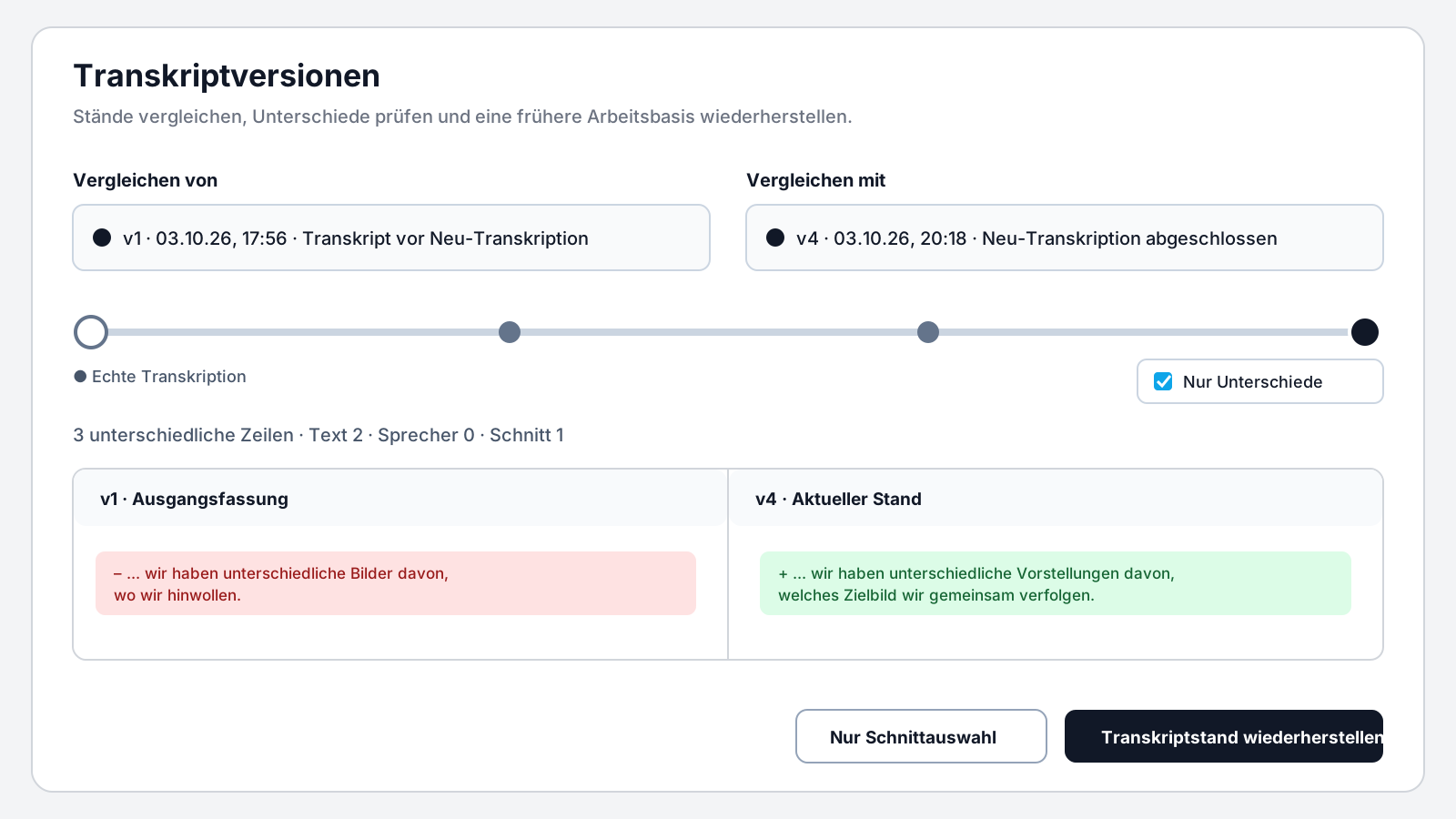
What creates a version?
Section titled “What creates a version?”A revision is created when you apply transcript changes or restore an older state. Before re-transcription, StoryVault saves the current uncut transcript; after successful processing, it stores the new result as another true transcript version.
The ● marker identifies a true transcript version from an import or transcription run. Editing revisions appear between these markers. This lets you distinguish editorial work from different source transcriptions.
Compare two states
Section titled “Compare two states”- Open a session, select Transcript, then Versions.
- Enable Select two versions if necessary.
- Choose the older state under From and the newer state under Compare with, or move the points on the timeline.
- Enable Differences only to hide unchanged lines.
- Review the summary and the side-by-side changes.
The comparison separates text changes, speaker reassignment, and differences in IN/OUT cut markers.
Restore the complete version or cuts only
Section titled “Restore the complete version or cuts only”Restore transcript state copies text, speakers, and cuts from the selected version. Cut selection only copies only its IN/OUT markers and keeps the current text and speakers. Both actions create a new revision. The selected old version and every later version remain unchanged.
Save or discard open edits before restoring. This ensures that the intended state becomes the new working basis.
Reset is different from restore
Section titled “Reset is different from restore”Reset in the editor only discards the unsaved draft. It does not delete saved revisions or re-transcription results. To use another transcription, select it in the version dialog and restore it explicitly.
Example with several transcription runs
Section titled “Example with several transcription runs”- A Teams VTT is imported as v1.
- Names and terminology are corrected in v2.
- Re-transcription saves v2 and creates a true transcript v3.
- Another run creates v4.
- Restoring v1 creates v5 with the content of v1; v2–v4 remain available for comparison.
For reliable teamwork, save coherent revisions, compare against the latest true transcript before approval, and review coding segments after substantial text changes.